An update to PontaHR from October 27, 2026
Let candidates book any time your team is free
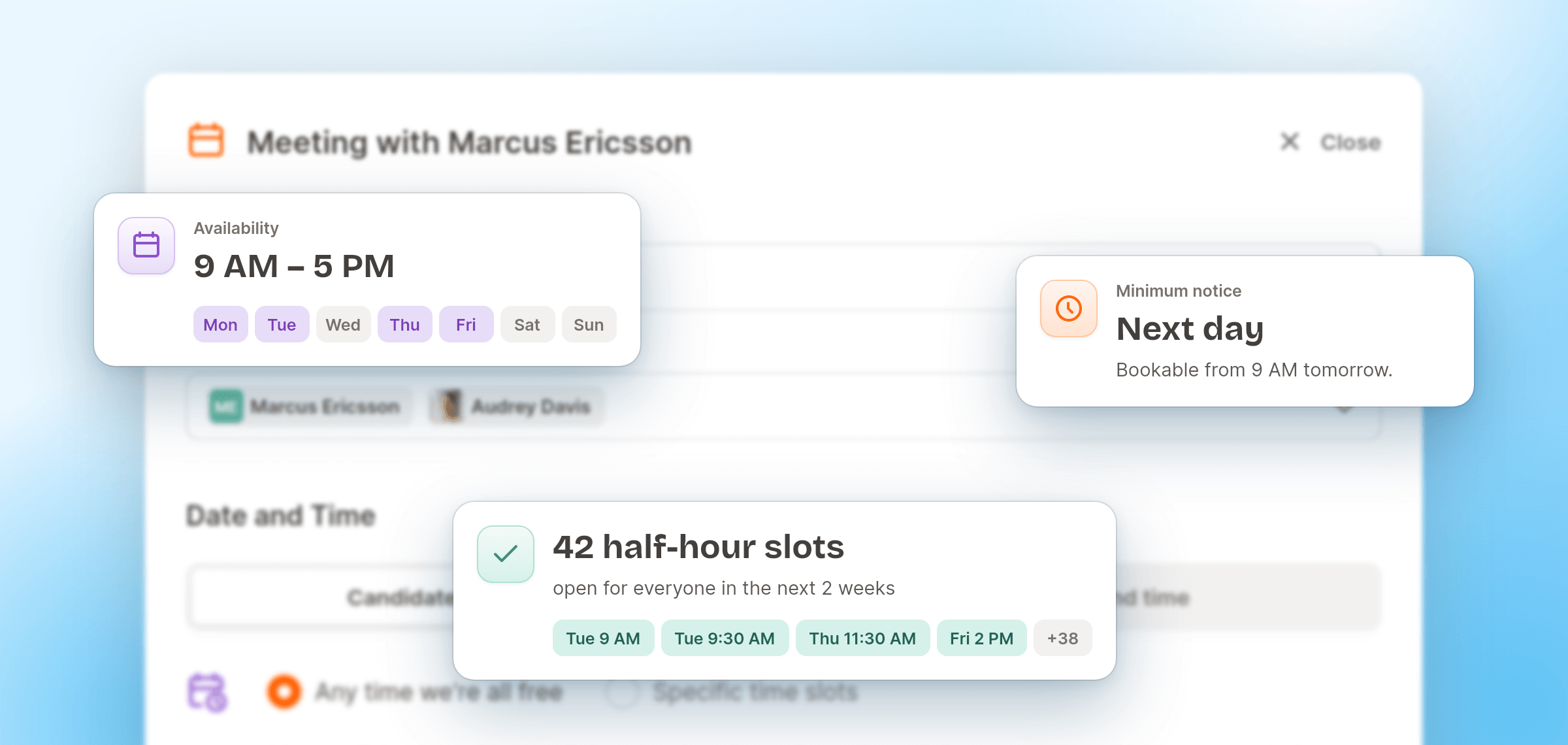
Until now, inviting a candidate to schedule their interview meant picking the time slots yourself. Fine for one interview, but a lot of clicking when you have ten candidates to invite. 😅
Now you can send a booking link and let candidates choose a time when all interviewers are free. You set the availability, notice period, and buffers; PontaHR finds the available times.
Let candidates choose an available time
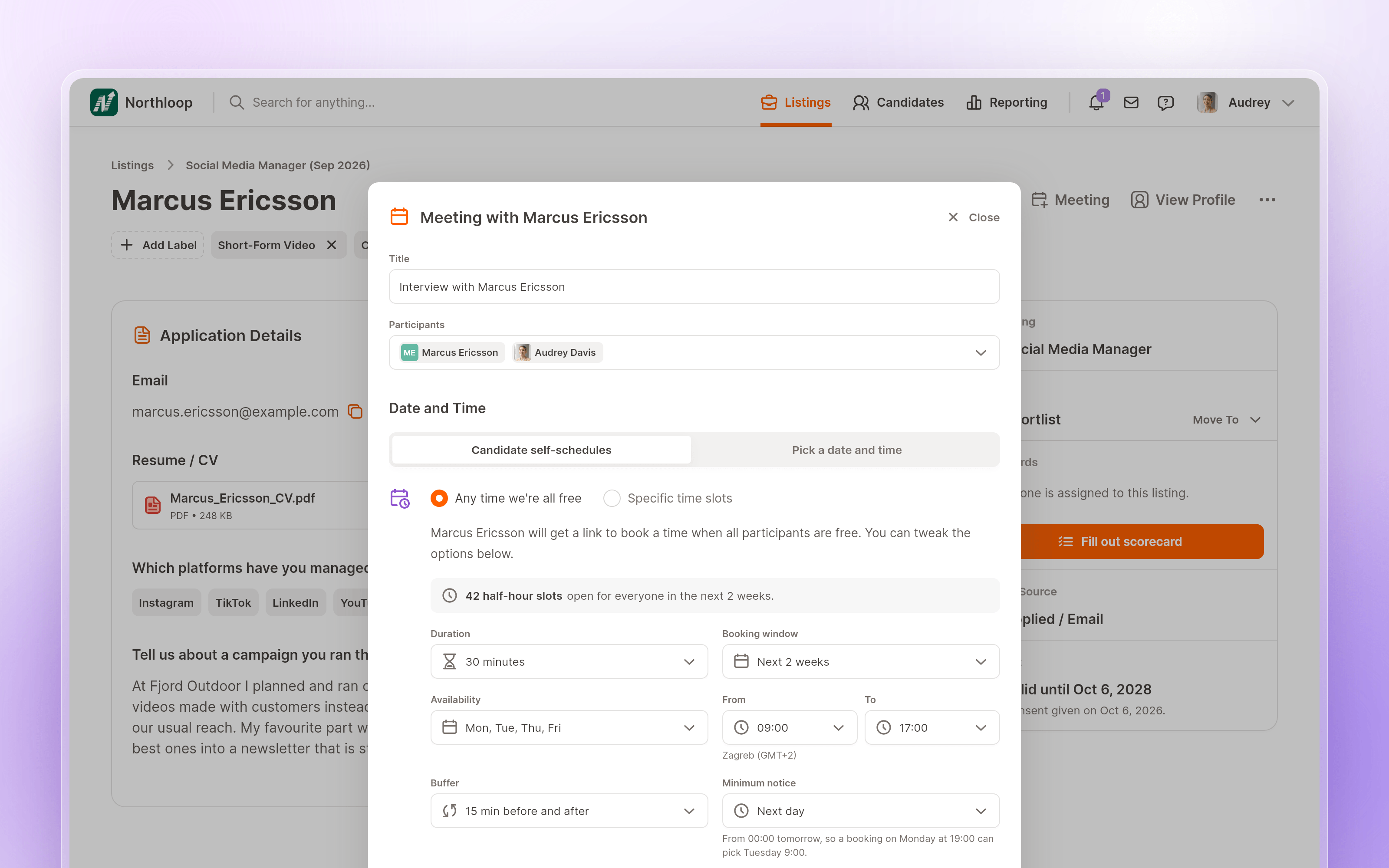
Open Schedule on a candidate, choose Candidate self-schedules, and you'll see two options:
- Any time we're all free sends a booking link based on your team's availability.
- Specific time slots lets you hand-pick times, just as before.
Add your interviewers, then choose how you'd like bookings to work:
- Duration: how long the interview will last.
- Booking window: how far ahead candidates can book.
- Minimum notice: how much notice you need before an interview.
- Availability: which days and hours you're available for interviews.
- Buffer: time to leave free before and after each interview.
Minimum notice defaults to Next day, which means any time from midnight tomorrow. A candidate opening the link at 7pm on Monday can still book 9am on Tuesday.
As you adjust these settings, you'll see how many slots are available across everyone's calendars. You can tell straight away if your settings leave too few options.
Candidates get the same email and booking page as before. Available times are checked against everyone's calendars when they open the page and shown in the candidate's own timezone. Interviewers' names stay private.
We check availability again when the candidate confirms, then add the interview to each interviewer's calendar. If that time is no longer free, the candidate sees a short note and an updated list of times to choose from.
Each link is for one candidate and one application. It can only be used once and expires after booking or when the booking window ends.
Add booking links to your emails
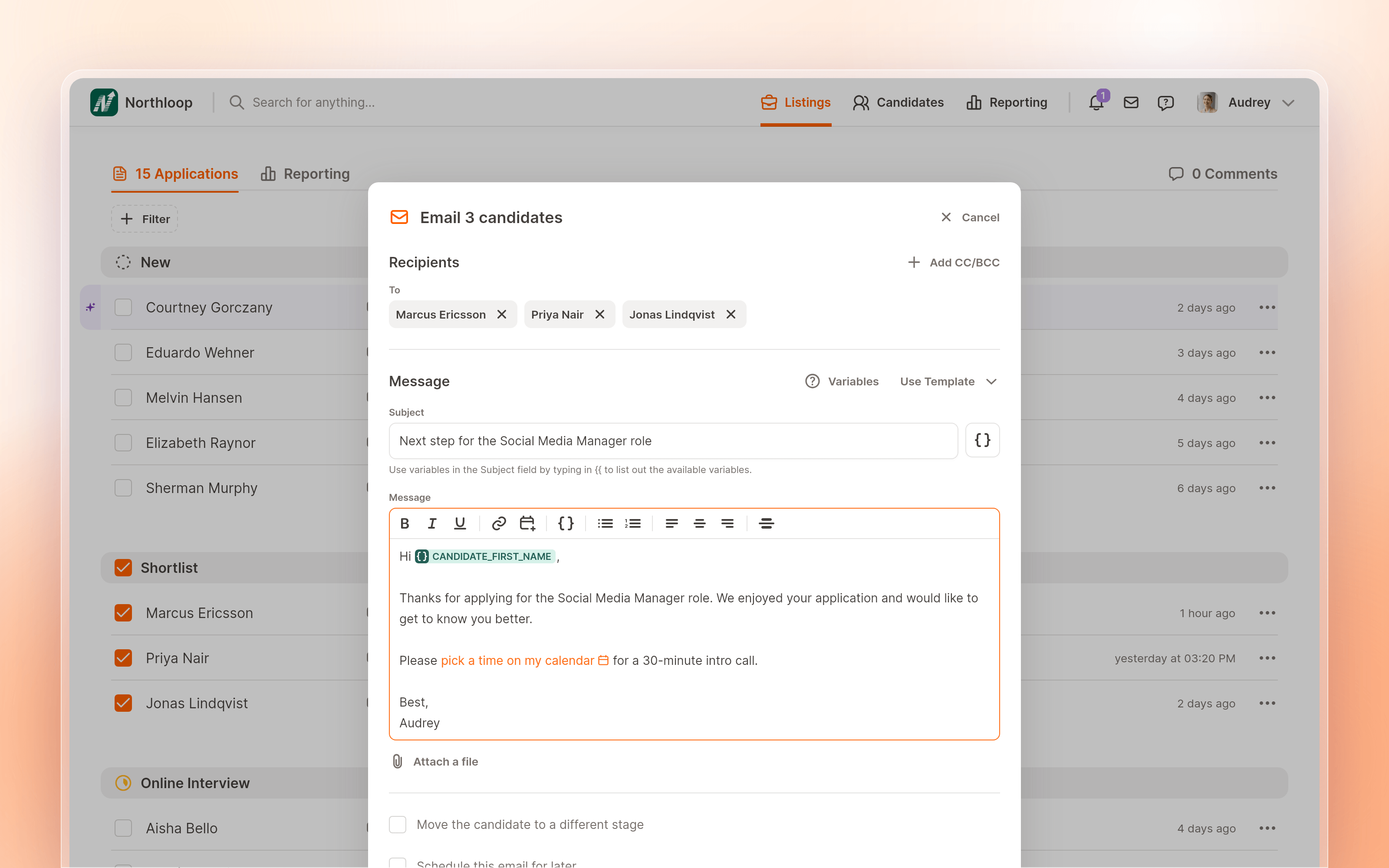
You can also include a booking link in an email you're already writing. Click Booking link in the email toolbar, choose your settings, and insert it into your message. You can edit the link text to fit your email.
Booking links also work with:
- Bulk emails: each candidate gets their own link, so you can invite everyone in a stage to book an interview in one go. Availability is checked at booking to prevent double bookings.
- Scheduled emails and replies: the link is created when the email goes out.
- Email templates: save a booking link and its settings in a template, so you don't have to set them up for each invitation.
You'll need a connected calendar and a timezone set in your settings to use booking links.
A tidier slot picker
If you prefer to offer Specific time slots, we've updated that picker too. You can set your available days and hours using the same controls as booking links. Days you've excluded are greyed out on the calendar, and the timeline shows how many slots you've offered.
Improvements and fixes
- 🐞 Fixed incorrect end times on meeting cards for meetings crossing noon or midnight.
- 🐞 Fixed an issue that could leave Gmail full sync retrying indefinitely.
- 🐞 Fixed an issue that could prevent jobs containing emoji from being posted to Indeed.
Like what you see?
We're continuously working on new things and improving existing ones. We'd love for you to have a say in what we're building next.
Request a Demo